
Task Bar of Ragnalis Controls
Navigate the compact idle client without fighting your own mouse.
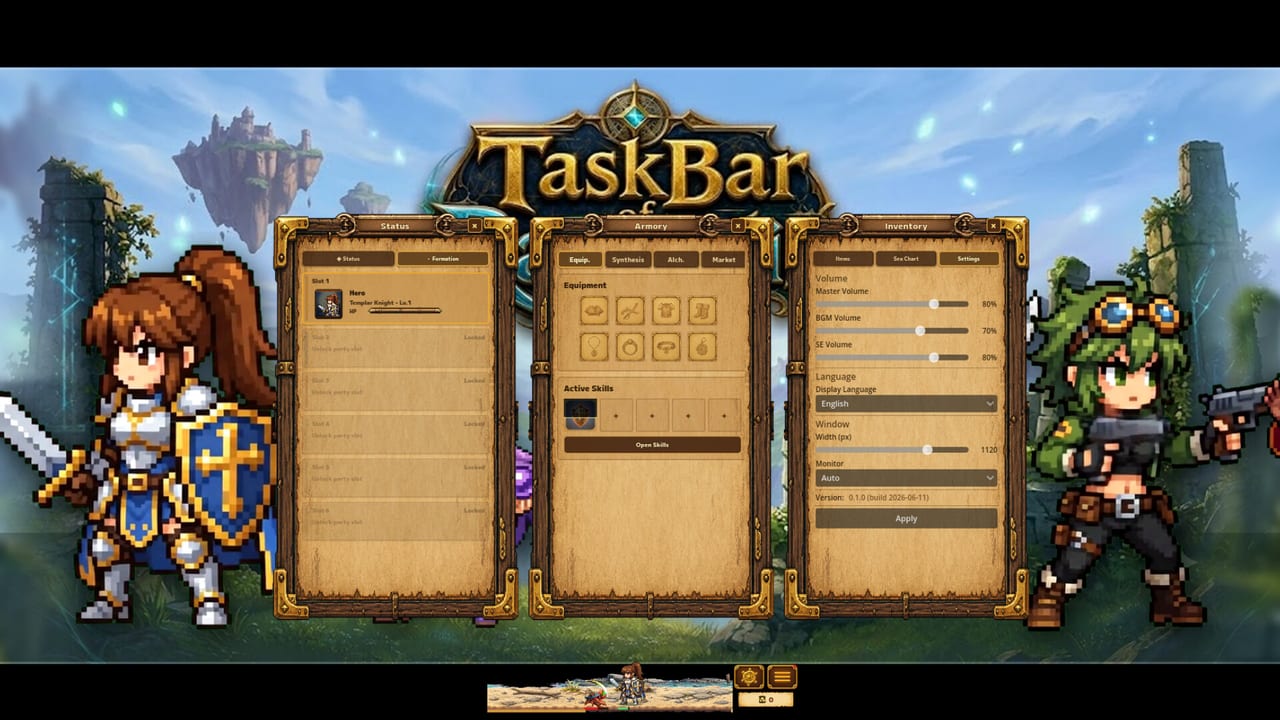
Controls are about check-ins, not combos
Task Bar of Ragnalis is an idle auto-battler. You do not win by mastering a twenty-button fighting game. You win by opening the right menus between automatic fights: equipment, stacking, skills, party slots, and upgrades. Because the client is built for a compact desktop footprint, every misclick costs more attention than it would in a fullscreen RPG. This page explains how to think about controls for Jagernaut Games’ free Steam client (App 4830880) after the July 30, 2026 launch.
If the window itself is too small to trust, fix placement first with Taskbar Setup and confirm your PC path in System Requirements.
Primary input model
Expect a mouse-first loop:
- Click heroes, inventory slots, and chest rewards to inspect tooltips
- Drag or assign gear only after you confirm class locks
- Open party and upgrade panels during check-ins, then leave combat alone
- Use keyboard shortcuts only where the client exposes them; do not assume hotkeys from other idle games
Because loot can be class-locked, tooltip reading is part of “controls.” If you cannot read the lock line, you will vendor or ignore useful pieces—or fill bags with junk for a class you do not field. Pair control habits with Items and How to Stack Items.
First-launch control checklist
- Launch the game in a context where menus are fully visible—not already crushed into an unreadable strip.
- Click through inventory, equipment, skills, and party screens once without fighting.
- Equip a clear upgrade and watch an automatic battle so you know what “progress” looks like.
- Practice selecting a second item copy and stacking toward the nine-copy rule.
- When a second hero slot appears, open party controls and assign roles using Party Builds or the Party Planner.
That rehearsal prevents the classic mistake: discovering mid-wave that you never learned where upgrades live.
Combat interactions you should not expect
- No constant clicker DPS requirement for normal idle play
- No complex directional dodge kit like an action RPG
- No need to mash skills every second if the build is set
Your job during fights is observation. If damage looks soft, that is a gear and class problem—see Gunner Guide and Beat Early Waves—not a missing keybind. If maps stall after you close the client, remember that idle progress expects the process to keep running.
Inventory and stacking controls
Stacking is where precision matters. Selecting the wrong pile, selling too early, or mixing lookalike gear can erase a nine-copy climb. Slow down:
- Inspect names and random skills before you merge or spend materials
- Keep a mental or notepad target for each stack line
- Use the Stack Calculator when you are unsure how many copies remain
- Avoid panic-selling everything for low gold; launch reviews already call gold pacing weak
Controls discipline here is economic discipline. Fast clicking feels productive and often is not.
Party and DLC class menus
A party of three means three equipment sets and three skill contexts. When you open DLC classes such as Pirate or Overlord, new menus and loot filters enter the same compact UI. Learn free-class navigation first. Then evaluate paid options with Pirate & Overlord and the DLC Cost Checker. Buying a class before you can navigate inventory makes the UI pain worse, not better.
Storage Expansion changes how much you can hold, not how mouse clicks work. Still, more slots mean more tooltip reading—see Storage Expansion.
Accessibility and comfort tips
- Prefer deliberate clicks over hover-only assumptions when fonts are tiny
- Increase OS display scaling only if you understand it may affect other apps; test after changes
- Keep a short check-in routine: equip, stack, party, upgrades, then leave it alone
- If menus feel “AI-looking” and confusing, use this wiki’s labeled hubs instead of guessing icon meanings
Controls versus other taskbar games
Do not import hotkey sheets from Task Bar Hero or other tray idlers. Different studios ship different clients. Confirm you are in Ragnalis with vs Task Bar Hero if a video’s UI does not match yours.
After controls feel natural
Move into How to Play, Early Progression, and the Classes hub. Controls mastery is finished when you can complete a check-in in under a minute without opening the wrong panel twice. That speed is what makes idle RPGs peaceful instead of nagging.
If you still hate the client after you can navigate it cleanly, the problem is the game loop, not your hands—read Worth Playing and decide without blaming “skill issue.”
Frequently Asked Questions
Quick answers to the most common questions.
Do I need to click during battles?
No. Battles run automatically. Use controls between fights for gear, stacking, skills, and party setup.
What is the most important control habit?
Read tooltips before equipping or selling. Class-locked loot and random skills punish blind clicks.
Should I learn controls before buying DLC?
Yes. Navigate the free client first, then consider Pirate, Overlord, or storage in the [DLC hub](/dlc/).
Where do I go after this page?
Set window placement in [Taskbar Setup](/setup/taskbar/), then start [How to Play](/guides/how-to-play/).