
Taskbar Setup for Task Bar of Ragnalis
Park the idle RPG where you can see fights without losing the rest of your desktop.
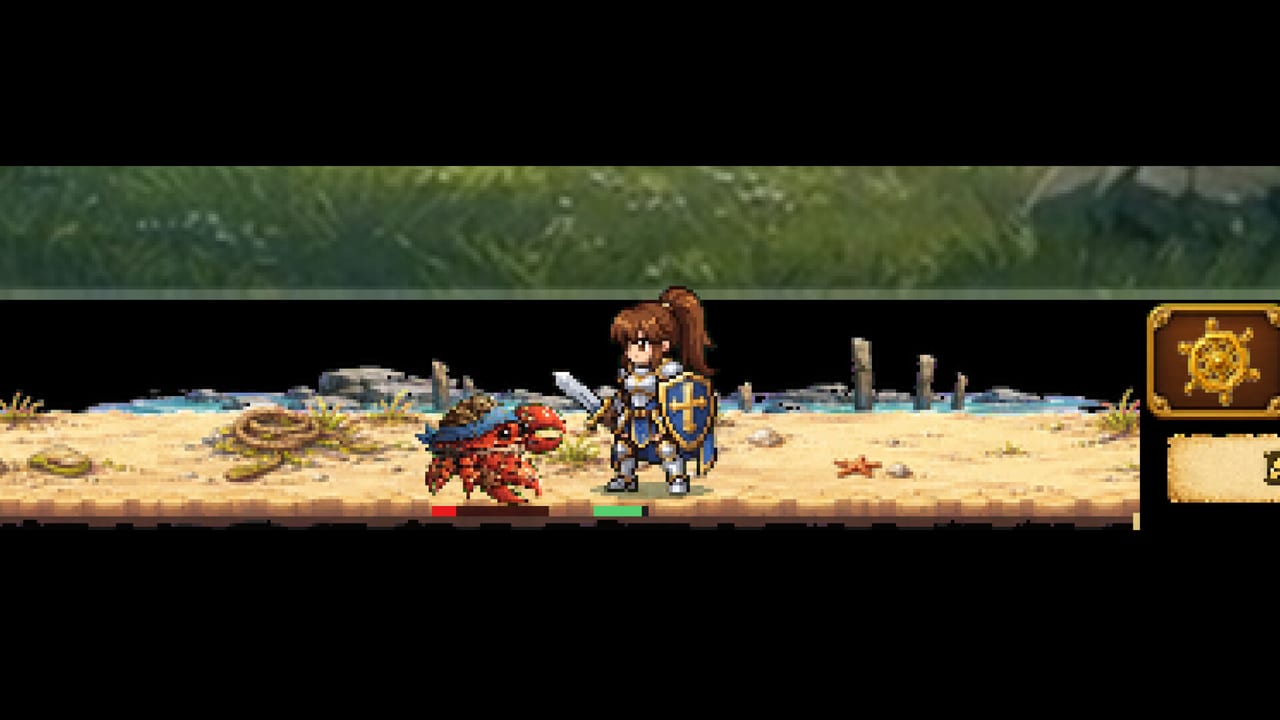
The taskbar is the product
Task Bar of Ragnalis sells a lifestyle as much as a combat loop: heroes fighting in a compact window while you browse, code, or watch streams. Jagernaut Games released that free-to-play fantasy on Steam on July 30, 2026 (App 4830880). Launch reviews hammered UI polish and the lack of comfortable resize options, which means taskbar setup is not optional flavor text—it decides whether you can even evaluate the game fairly.
This guide focuses on placement, visibility, and honest workarounds. It will not invent a missing scaler. For raw PC specs, see System Requirements. For menu habits inside the window, see Controls.
Goals of a good taskbar layout
- You can glance at wave progress without maximizing every time
- Tooltips for class-locked loot remain readable enough to act on
- The client stays running so idle battles continue
- Other work windows remain usable; the RPG should not eat the whole display
If any of those fail, you will misdiagnose soft Gunner damage, low gold, or “broken” drops because you cannot see what happened.
Placement strategies that players actually use
Bottom alignment with the OS taskbar. Keep the game near where your eyes already flick for the clock and icons. This matches the fantasy and reduces window hunting.
Second-monitor parking. If you have dual displays, dedicate the secondary screen. Readability jumps even when resize options are weak, because you can give the client more undisturbed space.
Short maximized check-ins. When launch UI feels AI-generic and cramped, maximize or focus the window for sixty-second manage sessions, then return it to the compact footprint for AFK. That hybrid rhythm beats squinting for twenty minutes.
Avoid true occlusion. Do not bury the client under always-on-top tools if you need to notice death loops or full inventories.
Living with limited resize
Launch feedback is blunt: players want resize and are not getting a comfortable one. Practical responses:
- Test Windows display scaling (100/125/150%) on a spare profile if fonts are unreadable—then reboot confidence by checking other apps you need.
- Lower crowded browser zoom on the same monitor so relative size feels less punishing.
- Prefer 1080p or 1440p workspaces when possible for first impressions; 4K laptop panels are the harshest critics of tiny UI.
- Use focused check-ins for stacking and party edits instead of micro-managing inside a postage stamp.
If none of that works, stop grinding and wait for patches. Forcing a hundred hours through an unreadable client is how Very Negative scores stay sticky. Context lives in the Honest Review.
Idle means running
Taskbar setup fails silently when users close the game thinking progress continues. Keep the process alive. Minimized or side-parked is fine; exited is not. After crashes, relaunch and confirm you are on the same map and party state before trusting AFK again. Progression bugs were part of launch complaints—verify results after long absences via Early Progression.
Inventory visibility on a small strip
Class-locked loot and random skills demand tooltip literacy. On a tiny window:
- Pause long enough to read locks before selling
- Stack toward nine copies only when you can confirm identical lines—see Stack Items
- Expand the window for heavy inventory sorting, especially before considering Storage Expansion
Buying storage because you cannot read filters is treating a UI wound with a wallet. Sometimes that still helps; just be honest about why.
Party of three in a compact UI
As you unlock a full party, the strip gets busier: three kits, more skills, more DLC class icons if you own Pirate or Overlord. Plan compositions in the Party Planner so check-ins are execution, not theory. Taskbar setup is easier when you already know who occupies each slot.
Do not copy Task Bar Hero desktop rituals blindly
Nugem Studio’s Task Bar Hero may use different window behavior. If a TBH video shows perfect docking you cannot recreate, you are not failing—you are in another product. Confirm identity with vs Task Bar Hero.
Pair setup with gameplay pages
Once the client is glanceable:
- Learn the loop in How to Play
- Watch presentation context in First Look
- Push early maps with Beat Early Waves
- Decide time investment with Worth Playing
Setup success criteria
You are done with taskbar setup when you can leave the game running for thirty minutes, return, read whether you gained gear or stalled, and finish a stacking or equipment check-in without frustration tears. Until that is true, more grind will not help. Fix the desktop stage first, then judge Jagernaut Games’ combat and economy on their merits.
Frequently Asked Questions
Quick answers to the most common questions.
Can I resize the Task Bar of Ragnalis window freely?
Launch players report missing or inadequate resize options. Use placement, secondary monitors, and short maximized check-ins as workarounds.
Should I close the game while working?
No. Keep it running for the idle battle loop. Closing the client stops the intended AFK progress.
What if the UI is unreadable on 4K?
Try display scaling tests, a second monitor, or focused manage sessions. If it stays unusable, wait for patches rather than forcing a grind.
Does taskbar setup differ from Task Bar Hero?
Yes. Different games may dock differently. Verify App 4830880 in [vs Task Bar Hero](/review/vs-task-bar-hero/).